You have a folder in Google Drive, maybe a few hundred gigabytes of it, and you need it in Amazon S3. Perhaps it is going into a data pipeline, or to cheaper long-term storage, or you are consolidating everything into one bucket. Whatever the reason, the task sounds trivial: it is just moving files from one place to another.
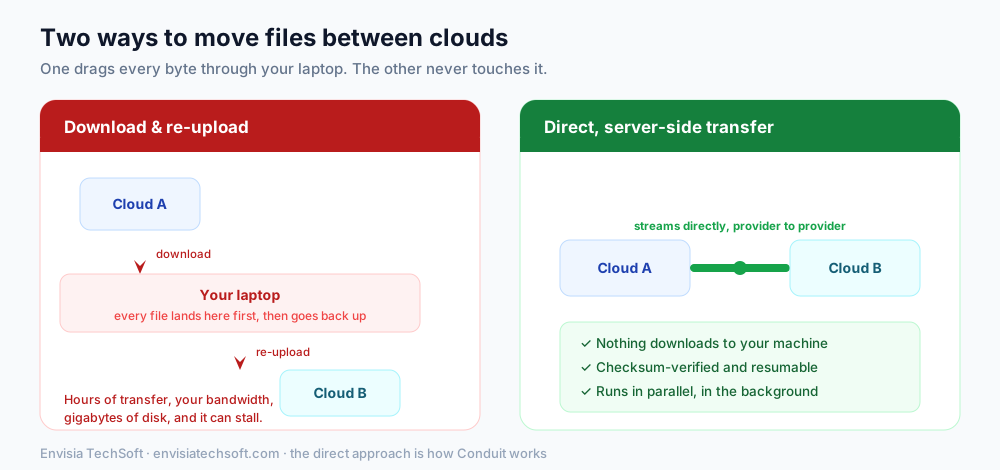
Then you try it, and you hit the wall that everyone hits. The obvious way to move data between two clouds is to download it from the first and upload it to the second, and that means every single byte travels down to your laptop and back up again. For a big folder that is hours of transfer, gigabytes of disk you may not have spare, and a process that quietly fails at 80% and makes you start over.
There is a better way, and there are a few options depending on how technical you want to get. Let's go through all of them honestly.
Why the obvious method is so painful
The download-and-re-upload approach fails for the same three reasons every time:
- It uses your bandwidth twice. Everything comes down over your connection, then goes back up over it. Your home or office internet is the bottleneck, and it is far slower than the cloud-to-cloud links the providers have between each other.
- It needs disk you may not have. To move 400 GB, you need 400 GB free on your machine, or you have to do it in awkward batches.
- It is fragile. A dropped connection, a sleep, a full disk, and a multi-hour transfer is ruined with no easy way to resume exactly where it stopped.
For a handful of small files, fine. For anything real, you want the data to move directly between Google and Amazon, without a detour through your device.
The three real ways to do it
1. Manual download and re-upload
Download the folder from Google Drive (or use Google Takeout for large exports), then upload it to S3 through the AWS console or the CLI.
Honest verdict: only acceptable for small, one-off moves. For anything sizeable it is the slowest and most error-prone option, for all the reasons above. Skip it unless the data is genuinely tiny.
2. rclone (the power-user route)
rclone is a superb free, open-source command-line tool that can copy between Google Drive and S3 directly. It is the right choice if you are comfortable in a terminal.
The catch most people miss: rclone streams the data through whatever machine it runs on. Run it on your laptop and you are back to using your own bandwidth. To get a true direct transfer you need to run rclone on a cloud server (an EC2 instance, say) that sits close to the providers, which means spinning up and configuring a VM. Powerful, free, and a real project to set up.
3. A direct cloud-to-cloud transfer (the easy route)
This is what Conduit and tools like it are built for: you connect both accounts in your browser, and the transfer runs server-side, streaming directly from Google Drive to S3. Nothing downloads to your machine, it runs in parallel in the background, and every object is checksum-verified on arrival so you know the copy is exact. (Conduit is essentially the second option, rclone on a cloud server, packaged so you do not have to build or run any of it.)
Here is how the three compare:
| Method | Uses your bandwidth/disk | Setup effort | Verified & resumable | Best for |
|---|---|---|---|---|
| Download + re-upload | Yes, heavily | None | No | Tiny one-off moves |
| rclone on your laptop | Yes | Medium (CLI) | Partial | Comfortable terminal users |
| rclone on a cloud VM | No | High (VM + CLI) | Partial | Technical users, free |
| Direct transfer (Conduit) | No | Low (connect + go) | Yes | Most people, large data |
Moving Drive to S3 with a direct transfer, step by step
If you want the no-setup path, the flow looks like this:
- Connect Google Drive. You authorise access through Google's normal consent screen. Your credentials stay with Google; the tool gets scoped access to read your files.
- Connect Amazon S3. Enter your bucket name, region, and an access key and secret key with permission to write to that bucket. (Best practice: create an IAM user scoped to just that bucket.)
- Pick source and destination. Choose the Drive folder to copy and the S3 bucket and prefix to write into.
- Start the transfer. It runs server-side, in parallel, and you watch progress live. Because it is checksum-verified, you get confirmation that what landed in S3 matches what was in Drive, and if it is interrupted it resumes rather than restarting.
Your files never touch your laptop, and your internet connection is irrelevant to the speed.
Which should you choose?
- Tiny, one-time move? Just download and re-upload. Not worth any tooling.
- Technical, cost-sensitive, and happy to run a VM? rclone on a cloud server is free and excellent.
- Large data, or you would rather not build infrastructure? A direct transfer service is the fastest path from A to B, and the verification and resume features matter a lot once you are moving real volumes.
The thing to avoid is the trap almost everyone falls into first: dragging hundreds of gigabytes down to a laptop and back up again. Move the data where it already lives, cloud to cloud, and the whole job gets faster, safer, and boring, which is exactly what you want from a data migration.
If you want the easy version, that is exactly what we built Conduit for: connect Google Drive and Amazon S3, pick your folders, and let it stream the data directly, verified and resumable, without a single byte touching your machine. There is a free tier to try it on, and you can read more about how it works in our Conduit overview.
Sources
Frequently asked questions
- Can you transfer files from Google Drive to Amazon S3 without downloading them first?
- Yes. A direct cloud-to-cloud transfer service streams your files from Google Drive to Amazon S3 on the server side, so nothing downloads to your computer. You connect both accounts, pick the source folder and destination bucket, and the transfer runs in the background. Conduit does this, and the files are checksum-verified on arrival.
- What is the fastest way to move Google Drive to Amazon S3?
- The fastest and least painful way is a direct server-side transfer, because it does not bottleneck on your home or office internet connection or your disk. Downloading everything to your machine and re-uploading it is the slowest option, especially for large data sets, and it can stall partway through.
- Should I use rclone or Conduit to move Drive to S3?
- rclone is a powerful free command-line tool and a great choice if you are comfortable with the terminal and can run it on a cloud server so it does not use your own bandwidth. Conduit is the easier option if you would rather connect two accounts in a browser and let the transfer run server-side, verified and resumable, with no setup.
- Does moving files to S3 delete them from Google Drive?
- No. A transfer copies your files to Amazon S3 and leaves the originals in Google Drive untouched. You decide separately whether to clean up the source once you have confirmed the copy is complete and verified.