Here's something that still surprises people: the same kind of model that powers a cloud AI assistant can run on the laptop you already own. No subscription, no API key, no data sent to anyone's server. You type a question, and your own machine answers it, even on a plane with the Wi-Fi off.
That used to be a research-lab trick. In 2026 it's a fifteen-minute setup. Open-source models have gotten good, and the tooling around them has gotten genuinely easy. Let me walk through how it actually works, because once the pieces click, the whole thing stops feeling like magic and starts feeling like something you'd obviously want.
Why run a model locally at all?
Three reasons, and they're the reasons that matter to businesses, not just hobbyists.
- Privacy. Nothing leaves your device. For a law firm, a clinic, or anyone touching customer data, "the text never goes to a third party" is not a nice-to-have, it's often the whole ballgame.
- Cost. There's no per-token bill. Once the model is on your disk, you can run it a million times for the price of the electricity.
- Control and availability. It works offline, it never changes under you because a vendor pushed an update, and no rate limit throttles you at the worst moment.
The trade-off is honest: a model small enough to run on your laptop won't match the biggest frontier models on the hardest tasks. But for summarising, drafting, classifying, extracting data, and answering questions over your own documents, a good local model is more than enough. And it's private and free, which changes the maths for a lot of real work.
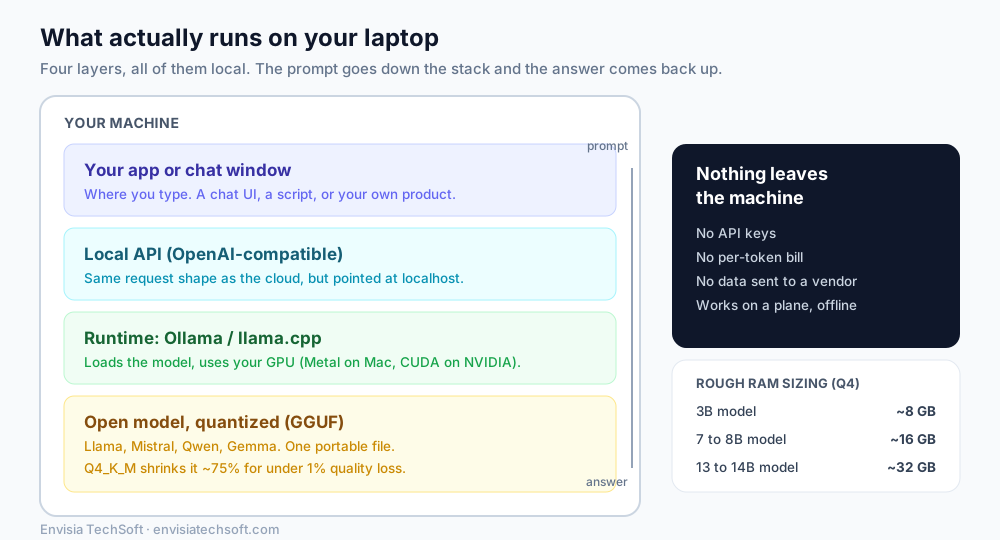
The four layers, from the model up
A local setup is really just four layers stacked on top of each other. Understanding them is understanding the whole thing.
1. The model: open weights in a GGUF file
At the bottom is the model itself. These are open-source models with freely downloadable weights, names you'll see everywhere: Llama, Mistral, Qwen, Gemma. The "7B" or "13B" after the name is the parameter count in billions, which roughly tracks how capable and how heavy the model is.
For local use, these get packaged in a format called GGUF. It's a single portable file that bundles the weights, the tokenizer, and the metadata together, and it's become the de facto standard for local distribution, with first-class support on Hugging Face. One file, drop it in, done.
2. Quantization: the trick that makes it fit
This is the clever bit that makes laptops viable. A model's weights are numbers, and by default they're stored at high precision, which eats memory. Quantization stores them at lower precision instead, which shrinks the model dramatically.
The popular setting, Q4_K_M, cuts memory use by roughly 75% while losing under 1% of quality. That is a spectacular trade. In concrete terms, a 7B model that would need about 16GB of memory at full precision drops to around 4GB quantized. That's the difference between "needs a server" and "runs on your laptop."
3. The runtime: Ollama or llama.cpp
The runtime is the engine that loads the model file and actually runs it, using your hardware to do the heavy lifting. Two names dominate:
- llama.cpp is the fast, lightweight core that does the real work. It runs almost anywhere.
- Ollama wraps llama.cpp in a friendly single-command interface. It handles downloading models, picking a sensible quantization, and offloading work to your GPU automatically. For most people, Ollama is the right starting point.
The runtime uses whatever accelerator you have. On a Mac, it taps the built-in GPU through Apple's Metal. On a Windows or Linux machine with an NVIDIA card, it uses CUDA. No graphics card at all? It can run on the CPU alone, just slower.
4. The API and your app
Here's the part that makes local models genuinely useful for building things. Ollama exposes an OpenAI-compatible API on your own machine. That means any app or script written to talk to the cloud can be pointed at localhost instead, and it just works. Your chat window, your internal tool, your automation, all talking to a model that lives on your desk.
What hardware do you actually need?
This is the first question everyone asks, so let's be concrete. The single biggest factor is memory (RAM, or on a GPU, VRAM), because the whole model has to fit. Using the default Q4_K_M quantization:
| Model size | Recommended RAM | Runs well on |
|---|---|---|
| 3B | 8 GB | Almost any modern laptop |
| 7B to 8B | 16 GB | Mainstream laptops, an 8 GB GPU |
| 13B to 14B | 32 GB | Higher-end laptops and workstations |
A couple of things worth knowing. If you're on a Mac with Apple Silicon (M1 through M4), you have an advantage most people don't realise: the unified memory architecture lets the GPU use all your system RAM. A 32GB Mac can run models that wouldn't fit on a 24GB discrete graphics card. Performance lands around 60 to 70% of an equivalent NVIDIA GPU, which is plenty.
And if you have no GPU at all, you can still run smaller models on the CPU with at least 8GB of RAM. Expect it to be five to ten times slower, but for light use it's completely usable.
Getting one running this afternoon
The honest version of "how do I start" is genuinely short:
- Install Ollama (one download, all three major operating systems).
- In a terminal, run one command to pull and start a model:
ollama run llama3.2
- That's it. It downloads the model once, then you're chatting with it, offline, on your own machine.
From there, if you want it inside your own software, point your existing OpenAI-style code at Ollama's local endpoint and change almost nothing else. Want it to answer over your own documents? That's where you'd add a retrieval layer on top, but the model running locally is the foundation, and it's already done.
Where local models fit (and where they don't)
Be clear-eyed about this. Local models are excellent for:
- Anything privacy-sensitive, where data genuinely cannot leave the building.
- High-volume, repetitive tasks where a per-token cloud bill would add up fast.
- Offline or air-gapped environments.
- Prototyping and learning, where free and unlimited beats polished.
They're a weaker choice when you need the absolute top of the capability curve on hard reasoning, or when you'd rather not maintain any infrastructure at all and a cloud API's convenience is worth the cost. Many teams end up doing both: a local model for the private, high-volume, everyday work, and a frontier cloud model for the occasional hard problem.
The mental shift is the valuable part. Once you've seen a capable model answer you with the network unplugged, "AI" stops being a service you rent from far away and starts being a tool that can simply live on your own machine, on your own terms. For a lot of businesses, that's not a small thing.
Sources
Frequently asked questions
- Can you run an LLM on a laptop?
- Yes. With a free tool like Ollama or llama.cpp and an open model in the GGUF format, a modern laptop can run a capable language model entirely offline, with no API key and no data leaving the machine. It is a roughly fifteen-minute setup in 2026.
- How much RAM do you need to run a local LLM?
- Using the default Q4_K_M quantization, roughly 8 GB of RAM runs a 3B model, 16 GB runs a 7B to 8B model, and 32 GB runs a 13B to 14B model. On Apple Silicon Macs, unified memory lets the GPU use all system RAM, so a 32 GB Mac can run models that would not fit on a 24 GB discrete graphics card.
- What is quantization and GGUF?
- GGUF is a single-file format that bundles a model's weights, tokenizer, and metadata for local use. Quantization stores the weights at lower precision to shrink the model. The popular Q4_K_M setting cuts memory use by about 75% while losing under 1% of quality, which is what makes running big models on a laptop practical.
- Are local LLMs as good as ChatGPT?
- For the hardest reasoning tasks, a laptop-sized model will not match the largest frontier models. But for summarising, drafting, classifying, extracting data, and answering questions over your own documents, a good local model is more than enough, and it is private and free. Many teams run a local model for everyday work and a cloud model for the occasional hard problem.